Activity Log
New Feature
X21 is making it easier to understand changes in excel models.
Excel models are rarely started-and-done in a single session, instead they evolve over time. We all know the reality of things: model_v2_final_version5.2_REAL_FINAL.xlsx
Common Pain Points
Did you ever ask yourself questions such as:
- How should I update my manager about the new version?
- What are changes by colleagues while I was gone?
- Client send us their new financial model from last month: did they change anything structural beyond this month data?
- I'm reviewing changes from my analyst and wondering whether they executed all requests?
- Reminder: What did I change last in this file when I updated it 6 months ago?
Solution: X21 Activity Log
Basically X21 can compare different versions of your excel files and summarizes the changes in an easy to understand way.
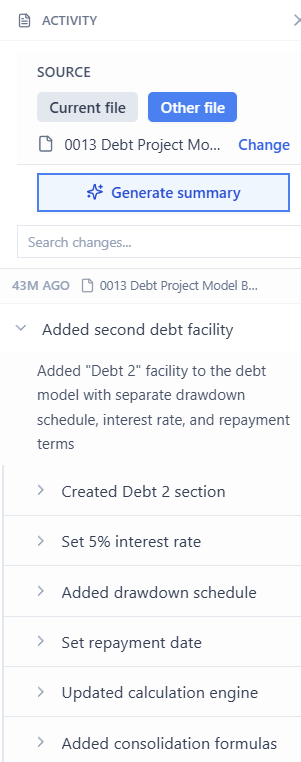
There are two ways to run it:
Compare 2 files (manual)
- Open the most recent version of the file
- Click "Activity Log" in the X21 Chat
- Click "Source" > "Other File" and select the version to compare with
- Click "Generate Summary"
Compare the file to itself (automatic)
- Click "Activity Log" in the X21 Chat
- Enable "Save milestone copies" - This will automatically save copies of your workbook changes. Copies are stored locally on your device whenever you save the file.
- (Do some changes)
- Click "Generate Summary"
Then any time to want to understand the changes you can generate a summary.
Addtionally you can also ask the X21 chat "what did I change in the assumptions last 3 weeks" if you are interested in a particular area.